
How to Clean Your Laptop Properly Without Damaging the Screen
By Steph Miller on April 20, 2026
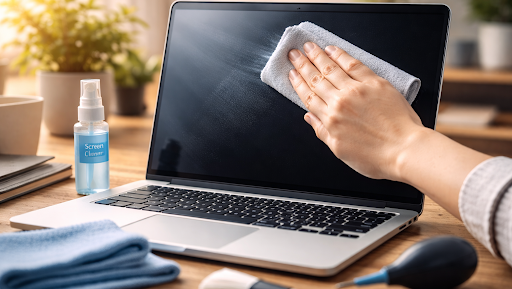
Laptops are used everywhere. On desks, couches, airplanes, cafés, and sometimes even beds. Over time, fingerprints, dust, crumbs, and smudges inevitably build up. While cleaning a laptop might seem simple, doing it the wrong way can cause permanent damage, especially to the screen.
Modern laptop displays are delicate. Harsh chemicals, rough cloths, or too much pressure can ruin coatings, leave streaks, or even damage internal components. Cleaning properly does not require special skills, but it does require the right approach.
With a few simple steps, you can keep your laptop clean, clear, and working well without risking expensive repairs.
Why laptop screens need special care
Laptop screens are not made like traditional glass. Most modern displays have anti-glare or anti-reflective coatings that improve visibility and reduce eye strain. These coatings are sensitive to chemicals and abrasion.
Using household cleaners, paper towels, or tissues can strip away protective layers or create micro-scratches that permanently affect image quality. Even applying too much pressure can damage pixels beneath the surface.
That is why screen cleaning should always be gentle, minimal, and intentional. Less force and fewer products are almost always better.
What you should use and what to avoid
Before cleaning anything, gather the right tools. You do not need much.
A soft microfiber cloth is essential. These are designed to lift dust and oils without scratching surfaces. If possible, use a clean cloth reserved only for screens.
For moisture, plain water is usually enough. If needed, a small amount of screen-safe cleaning solution can be used, but it should never contain alcohol, ammonia, acetone, or strong solvents.
Avoid paper towels, napkins, tissues, window cleaner, disinfectant wipes, and sprays designed for household surfaces. These products are far too harsh for laptop displays and can cause long-term damage.
How to clean the screen safely
Start by turning off the laptop and unplugging it. This reduces risk and makes smudges easier to see. Let the screen cool if it has been on for a long time.
Use the dry microfiber cloth first. Gently wipe the screen in one direction to remove dust and loose particles. Do not scrub or press hard.
If smudges remain, lightly dampen a corner of the cloth with water. The cloth should be barely moist, never wet. Wipe gently, using minimal pressure, and avoid letting moisture pool near the edges of the screen.
Never spray liquid directly onto the display. Any liquid should go on the cloth first. Once finished, let the screen air dry for a few seconds before closing the laptop.
Cleaning the keyboard and outer surfaces
The keyboard and laptop body can usually handle slightly more cleaning, but caution is still important. Dust and crumbs often collect between keys, so start by gently shaking the laptop upside down or using compressed air held at an angle.
Wipe keys and surfaces with a microfiber cloth lightly dampened with water. For stubborn grime, a small amount of diluted, screen-safe cleaner can be used, but never allow liquid to drip between keys.
Pay attention to frequently touched areas like the trackpad, palm rest, and lid. These spots accumulate oils quickly and benefit from regular gentle cleaning.
How often should you clean your laptop
Light cleaning once a week helps prevent buildup and reduces the need for heavier cleaning later. Screens usually only need wiping when visibly dirty.
Deep cleaning every few months is sufficient for most users, especially if the laptop is used in clean environments. If you eat near your laptop or use it outdoors often, more frequent cleaning may be helpful.
The key is consistency rather than intensity. Gentle, regular care keeps your laptop looking new and functioning properly.
Small habits that prevent damage over time
Cleaning is only part of laptop care. Avoid touching the screen whenever possible, and close the laptop gently without pressing on the display.
Wash hands before extended use, keep food and drinks at a distance, and store microfiber cloths in clean, dry places. These habits reduce how often deep cleaning is needed and protect delicate surfaces long term.
A well-maintained laptop is not just nicer to look at. It also lasts longer and performs better.